

Last Updated on October 5, 2022 by Slideson
Ever wondered how to create labels with arched text in PowerPoint. Sometimes you might need to curve your text in order to fit it on a a label. In this tutorial I’ll show you how to create a simple label in PowerPoint.
Step 1
Start by creating 2 circles, one smaller than the other. Align them center and middle (Format tab -> Align).
Step 2
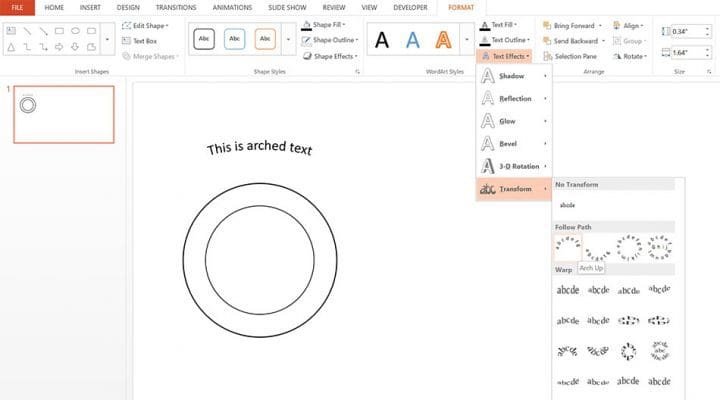
Next write your text. Select the text box and go to Format tab -> Text Effect -> Transform -> Arch Up. Place the text over the top of the circle and strech it to fit the circle. Use the pink handle to further edit the text.

Step 3
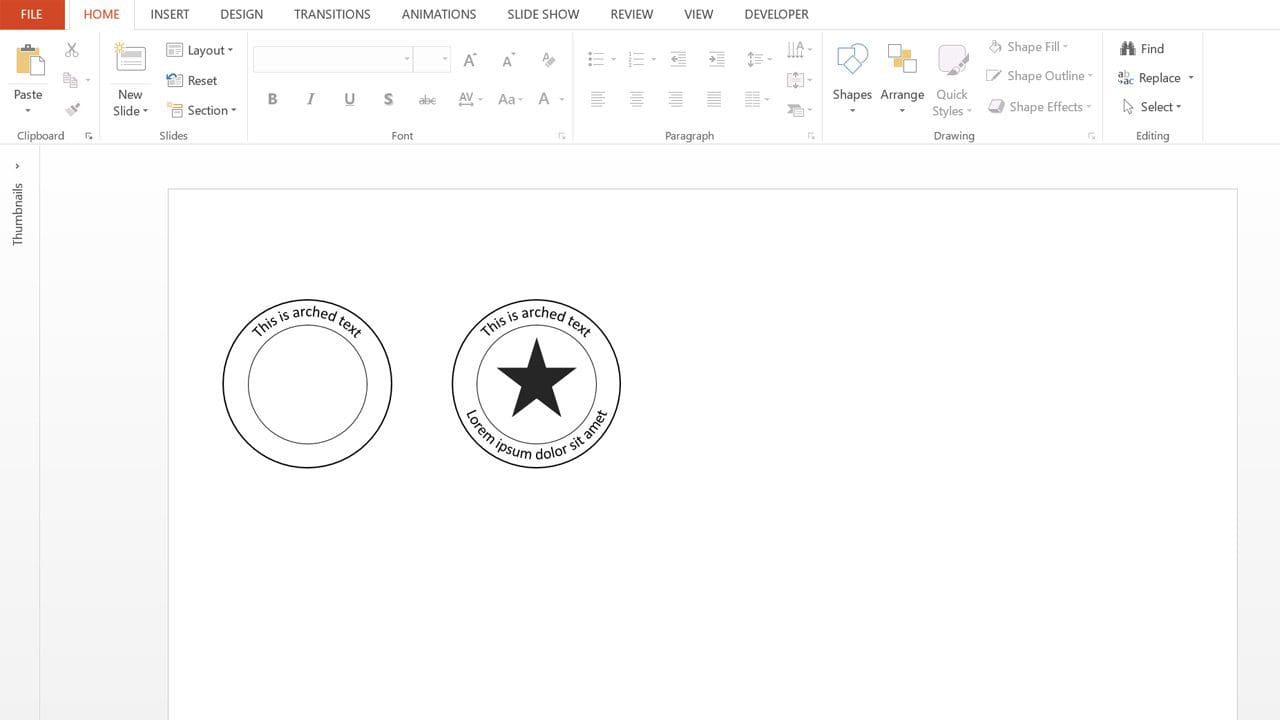
To do the bottom part, just duplicate the text (CTRL + D) and select Format tab -> Text Effect -> Transform -> Arch down. Edit the text if needed, stretch and position accordingly.
Step 4
Now you can add a shape to the middle. Use one of the PowerPoint shapes or create your own shape. For demonstration purposes I used one of the build in shapes of PowerPoint.
I hope you enjoyed this tutorial. If you have questions or topic suggestions, comment below! Don’t forget to check out Slideson’s creative PowerPoint templates.

Free professional PowerPoint and Google Slides presentation templates. Boost your presentations with Slideson! Want to write for us? Become a contributor.
Related Articles
10 PowerPoint Add-ins to Improve Your Workflow
How to Use Adobe Illustrator Shapes in PowerPoint
10 Tips for Leveraging the Power of SlideShare for Visual Content Marketing
4 Tips for Creating the Perfect PowerPoint Presentation
How to Use Mind Mapping to Boost Productivity and Organization
How to Prepare an Annual Report for Your Business
How to Convert Font to Shape in PowerPoint
Tips for Creating a Stunning Sales Deck
Free Presentation Templates
Marketing Plan Template
Business Presentation Template
Portfolio PowerPoint Template
Company Profile PowerPoint Template
Pitch Deck PowerPoint Template
Gradient PowerPoint Template
Startup Pitch Deck
Device Mockups for PowerPoint
Project Planning PowerPoint Template